Logs
Clicking a service opens its log viewer, where new lines are automatically appended.
Navigate
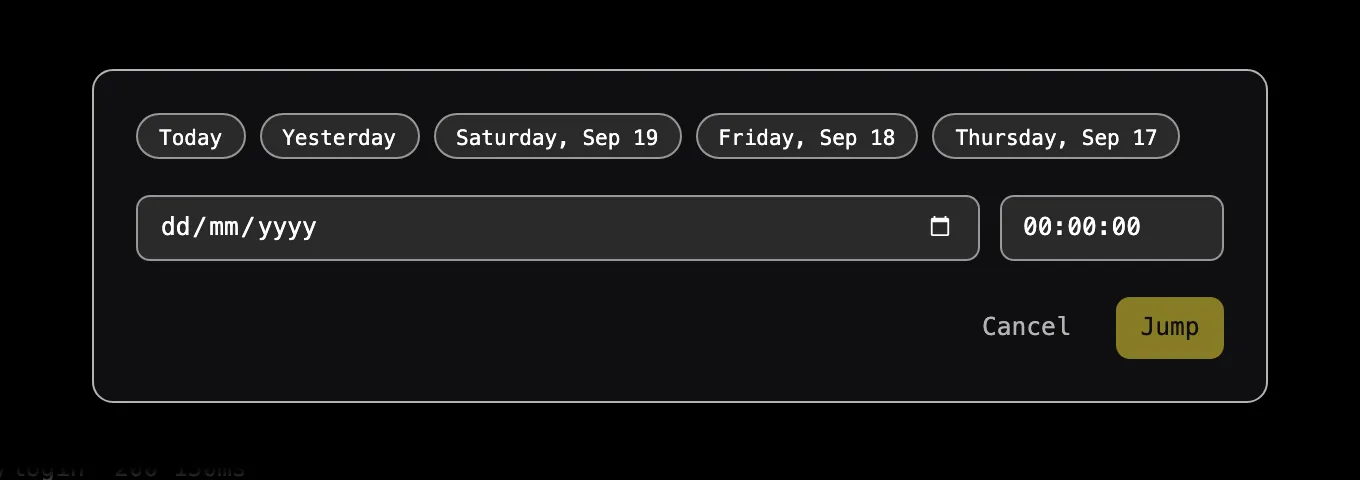
Rather than scrolling, you can jump straight to a moment in time with Navigate (Ctrl+I or ⌘I). Pick one of the last few days or enter a date, optionally enter a time, and Dolog loads the lines around that moment and marks the spot.
Clicking the timestamp of any line marks that line in the same way, which is handy for keeping your place, or for pointing somebody else at it.
Search
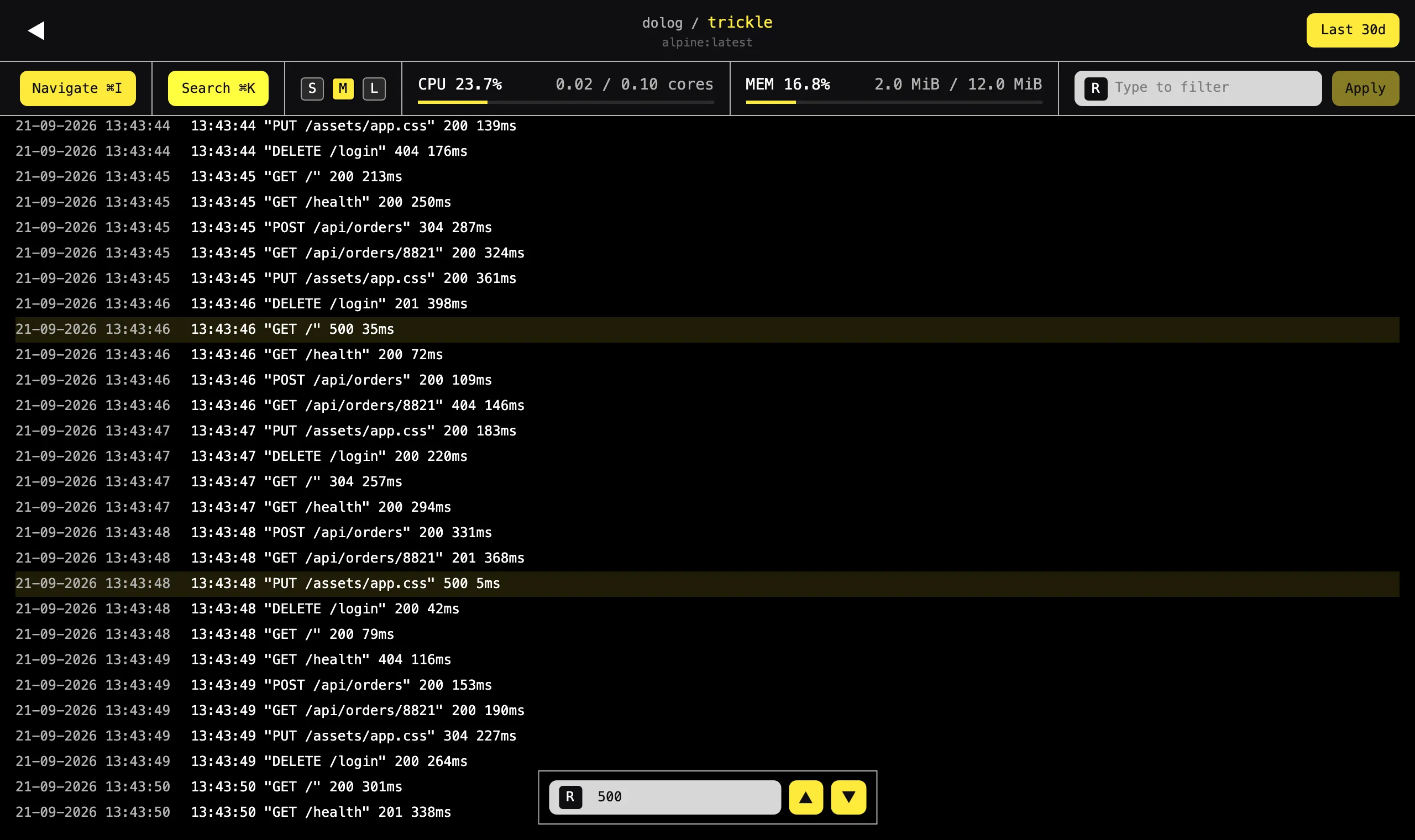
Search (Ctrl+K or ⌘K) highlights every line containing your search term, and steps through the matches one by one with Enter and Shift+Enter.
Search goes through the entire history of the service and not just the lines currently on screen.
Filter
A filter narrows the log viewer down to matching lines only, both for the history and for the lines which are still coming in.
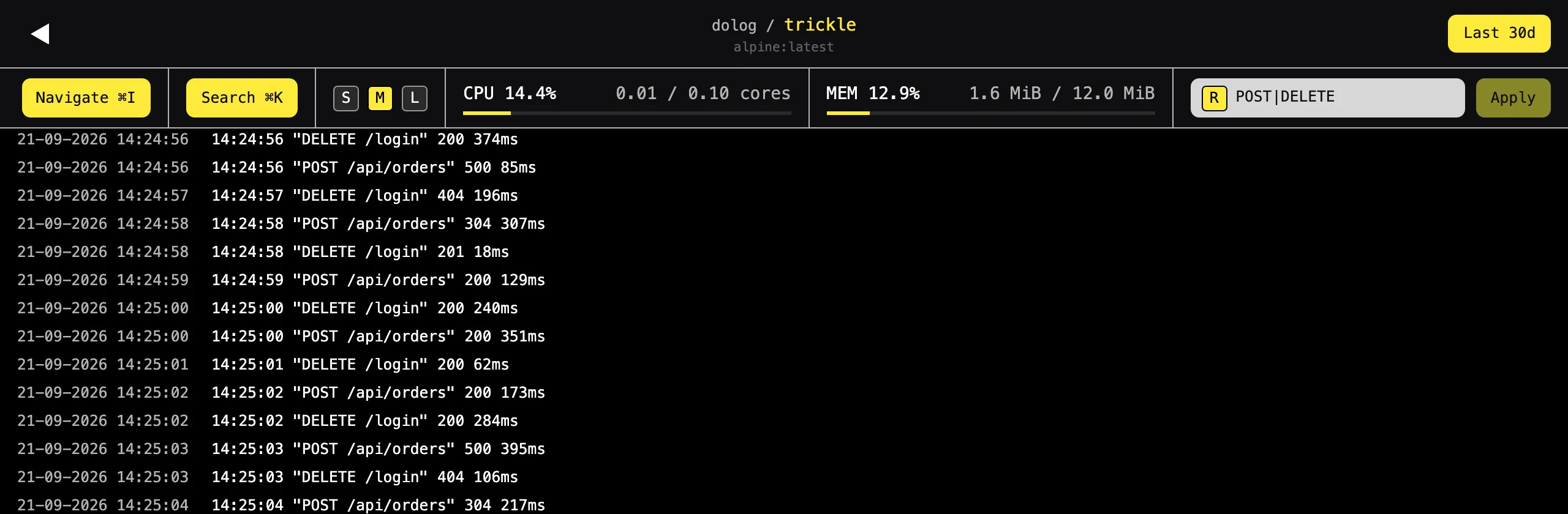
Both search and filters look for plain text by default, ignoring case. Toggle the R to have your input read as a (case-sensitive) regular expression instead.
Period
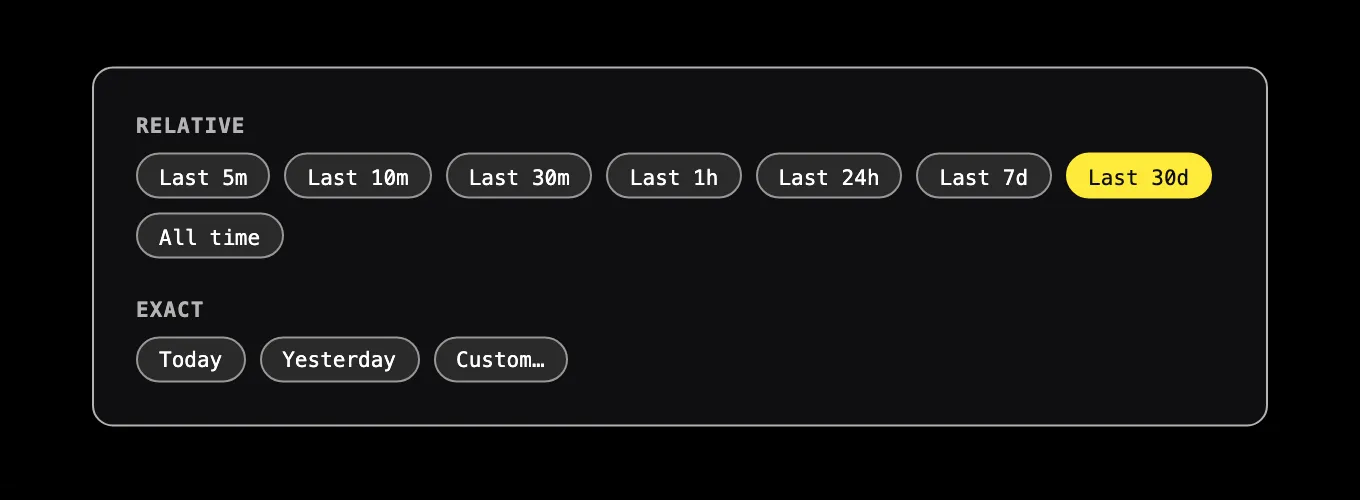
The period picker in the top right corner limits the viewer to a period of time, which is the last 30 days unless you change it.